What it is good at
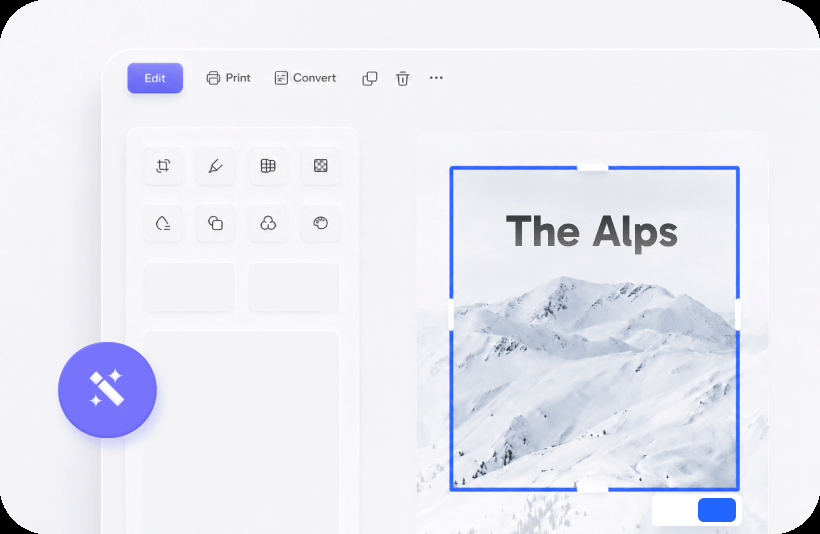
Crop a screenshot. Draw an arrow on a delivery note. Blur a phone number before you paste the picture into a ticket. Resize so a 12 megapixel JPEG does not become a 40 MB DOCX. That is the job. Kingsoft’s marketing sometimes lists Photo beside Writer and PDF as if it were a fifth flagship; treat it as a utility.
What it is not
It is not Adobe Photoshop, Affinity Photo, or GIMP. No serious retouching, no batch catalog, no print-ready color management. If a client sends a product packshot that needs a clipping path, leave WPS. If you are documenting a leaky pipe for a landlord, stay.
A sane report workflow
- Shoot the photo in decent light. Flash on a glossy invoice is how OCR dies later.
- Open in WPS Photo. Crop to the subject. Rotate so text is level.
- Annotate in a color that survives black-and-white print (not pale yellow).
- Export JPEG at a sensible size, or paste directly into Writer.
- In Writer, set wrap and a caption. Compress pictures if the file balloons.
Privacy
Screenshots of a customer database, a child’s school portal, or a medical letter need a blur pass before they enter email. Photo’s markup is enough for a rectangle over a name. Do not upload the unredacted original to a random “compress image” website. Related: safety · PDF toolkit.
Phone versus desktop
The Android and iOS apps already scan and OCR. Desktop Photo is for files that already landed on the PC. Do not bounce a photo phone → desktop Photo → phone again; pick one editor. Android · iOS.