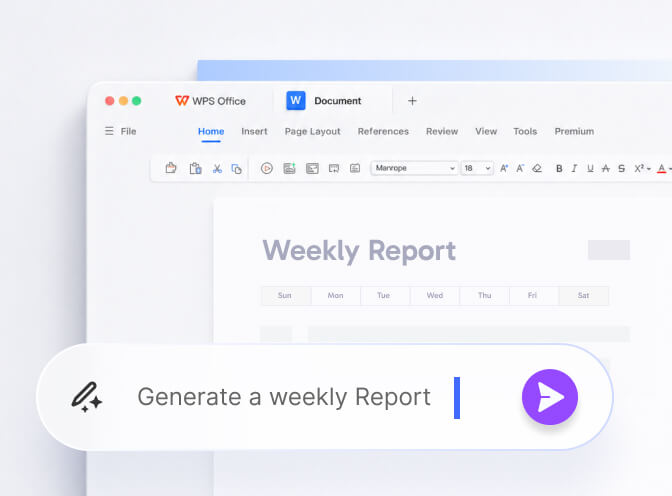
Writer (Windows)
| Action | Shortcut |
|---|---|
| Bold / italic / underline | Ctrl+B / Ctrl+I / Ctrl+U |
| Save / Save As | Ctrl+S / F12 (build-dependent) |
| Find / replace | Ctrl+F / Ctrl+H |
| Select all | Ctrl+A |
| Page break | Ctrl+Enter |
| Non-breaking space | Ctrl+Shift+Space |
| Ctrl+P | |
| Undo / redo | Ctrl+Z / Ctrl+Y |
| Hyperlink | Ctrl+K |
| Switch ribbon tabs | Alt then letters (similar to Word’s KeyTips) |
If a chord does nothing, check whether an IME (Chinese, Japanese, Korean) or a screen reader stole it. Also check that you are in a text frame, not a selected picture.
Spreadsheets
| Action | Shortcut |
|---|---|
| Edit cell | F2 |
| Fill down | Ctrl+D |
| Insert current date | Ctrl+; |
| Recalculate | F9 (vital when calculation is manual) |
| Jump to edge of data | Ctrl+Arrow |
| Select data region | Ctrl+Shift+End (then trim) |
| New sheet | Shift+F11 on many builds |
On a crawling 80 MB file, F9 plus manual calc is the whole job. See Spreadsheets and Daniel’s close.
macOS differences
Swap Ctrl for Command for the basics (save, copy, paste, bold). Option/Alt chords that insert special characters on Windows do not map 1:1. Learn Print Preview on Mac before a class demo. Details: Mac download notes.
Linux
Most Windows Ctrl chords work in the official Deb/RPM build. Desktop environments that bind Super+letter globally will steal focus. If Ctrl+S opens a system dialog, the window manager won — not WPS. Linux install.
Accessibility
Tab order through a template full of floating boxes is miserable. Prefer styles and real tables. Keyboard users should test a campus template once before committing a semester to it.